
Why your Zebra printer skips labels
A Zebra printer that ejects a blank label between prints, skips every other label, or feeds several labels per job is almost always a media-detection problem: the sensor type is wrong, the printer is not calibrated, or the label length does not match the media. Here is how to fix it.
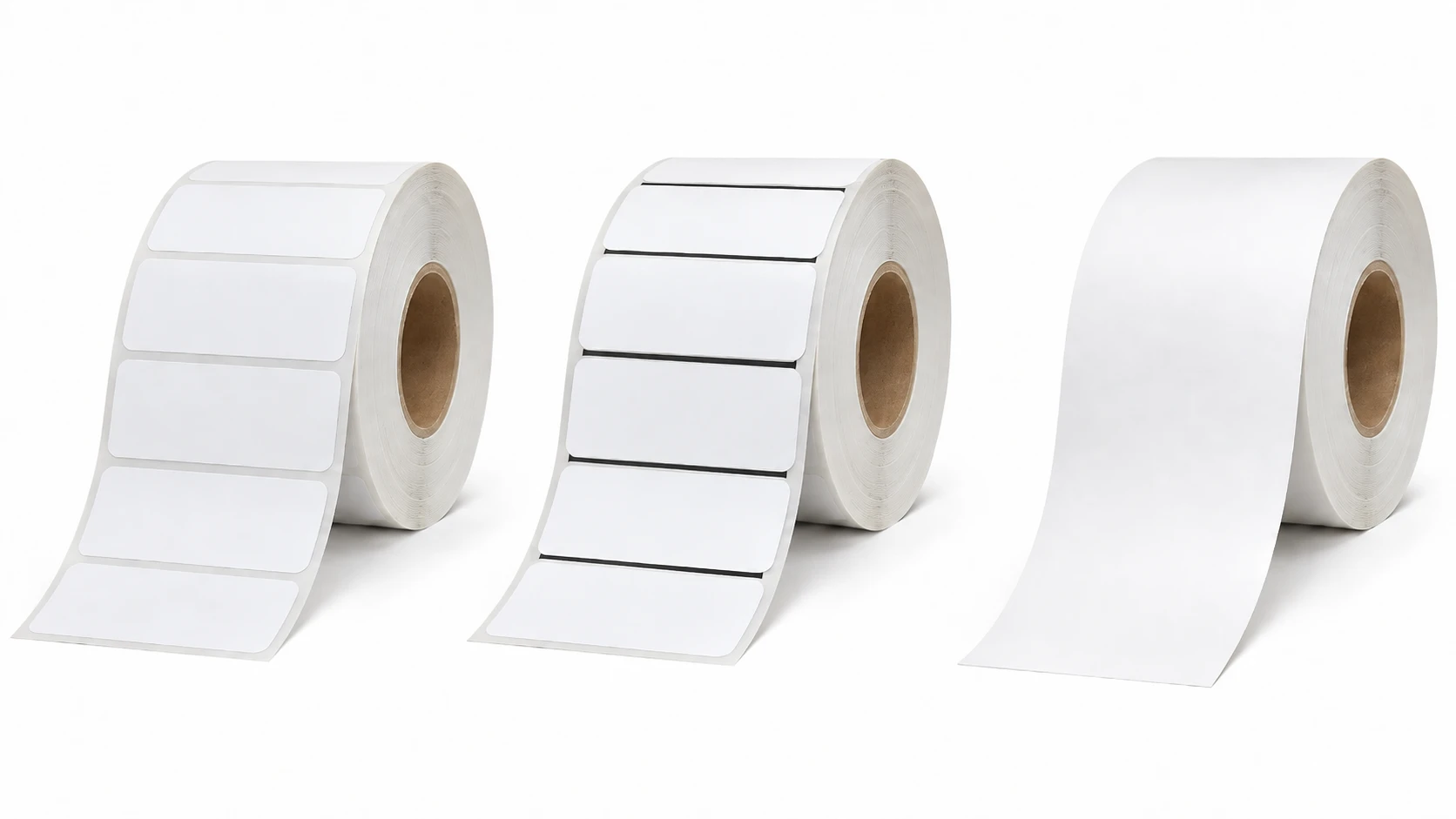
Most common causes
Wrong sensor type for your media
Gapped labels use the transmissive (gap) sensor, labels with a black line on the back use the black-mark (reflective) sensor, and continuous media uses neither. If the sensor type is set wrong, the printer misreads where each label ends.
The printer is not calibrated
Without calibration the printer does not know the label and gap length, so it feeds past labels or ejects blanks trying to find the next start position. New rolls and media changes need a fresh calibration.
Label length does not match the media
If the configured label length (^LL) or the driver page size is larger than the physical label, the printer runs onto the next label, printing every other one or leaving blanks in between.
Media is not loaded through the sensor
If the label web does not pass under the media sensor, or the sensor is dirty or out of position, the printer cannot detect gaps or marks and feeds continuously.
Design size differs from the loaded label
A label designed for a different size than the media on the roll shifts content and gap detection, so prints drift and labels appear skipped.
Step-by-step fix
- Identify your media: gapped, black-mark, or continuous. Set the printer's media/sensor type to match — this is the single most common cause of skipping.
- Run the printer's calibration (auto/smart calibrate from the menu, or the feed-button calibration for your model) so it measures the label and gap length. Do this after every media change.
- Set the correct label length and width. In ZPL use ^PW for width and ^LL for length in dots (dots = inches × DPI); in the driver, set the page size to the real label size.
- Check the media path: the label backing must pass under the media sensor, the sensor must be clean and, on adjustable models, positioned over the gap or black mark.
- Print a correctly sized test label to confirm one label prints per feed with no blanks. Send the sample ZPL below (3" × 2" at 203 DPI) and adjust ^PW/^LL to your media.
Correctly sized test label
This label sets an explicit print width and length (3" × 2" at 203 DPI). Adjust ^PW and ^LL to your media size, then confirm the printer advances exactly one label per print.
^XA
^PW609
^LL406
^FO40,40^A0N,40,40^FDLabel size OK^FS
^FO40,120^GB520,240,3^FS
^XZOfficial Zebra resources
Frequently asked questions
How do I calibrate a Zebra printer?
From the front panel choose the calibrate option (Calibrate / Smart Calibrate), or use the feed-button sequence for your model. The printer feeds a few labels to measure the label and gap length. Recalibrate after every media change.
Why does my Zebra printer eject a blank label between prints?
Usually the wrong sensor type or an incorrect label length: the printer overshoots the gap and ejects a blank while finding the next start. Set the correct media/sensor type and calibrate.
Why does it print on every other label?
The configured label length is larger than the physical label, so one print spans two labels. Set ^LL (or the driver page size) to the real label length and recalibrate.
About the author
Eduard Diaz
Eduard Diaz is an IT technician (development) at S-IE, an official Zebra partner with more than 20 years providing identification and labelling services. He builds and maintains EditorZPL to make working with ZPL and Zebra label printers easier.
s-ie.cat