
Why your Zebra printer pings but won't print on port 9100
The printer has an IP, answers ping, and its web pages open — but sending ZPL over TCP/IP RAW on port 9100 fails with a refused or timed-out connection. On Zebra printers placed on the market in EMEA on or after August 1, 2025, this is expected: port 9100 is disabled by default under the EU RED security changes and has to be re-enabled deliberately.
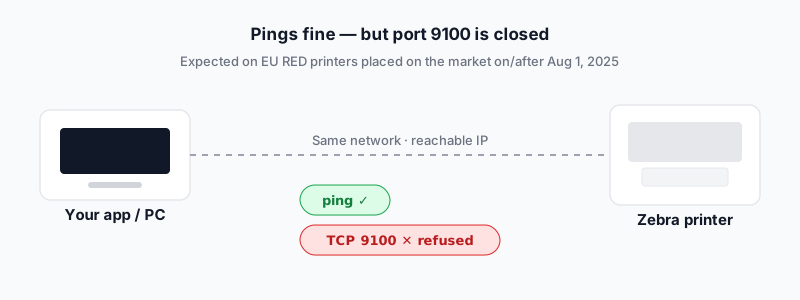
Why port 9100 is disabled
To meet the cybersecurity provisions of the EU Radio Equipment Directive (Article 3.3 d/e/f), Zebra ships affected firmware with unauthenticated network services off by default. Printers placed on the market in EMEA on or after August 1, 2025 have TCP RAW port 9100 closed out of the box, and units placed on the market before that date are unaffected.
Only wireless or Ethernet-radio-capable printers are in scope — Wi-Fi; RFID, Bluetooth or Smartcard with Ethernet; and Bluetooth-with-Ethernet option cards or cradles. USB-only, Ethernet-only and Bluetooth/RFID-only devices are not affected.
Affected series: ZQ300/500/600 · ZD200/400/500/600 · ZT200/400/500/600 · ZE500 · ZC300/350
What is Protected Mode?
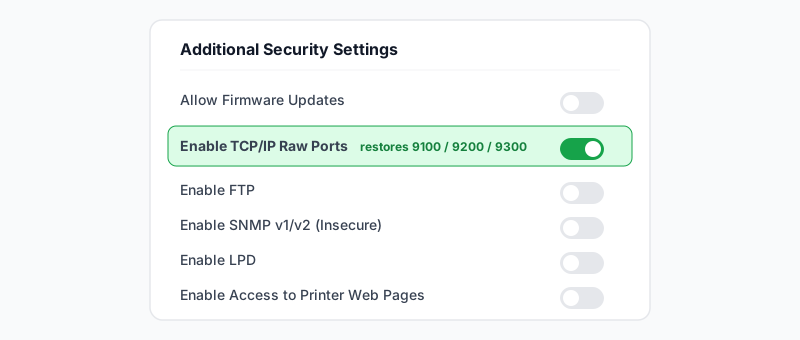
Protected Mode is Zebra's EU RED security state. While it is enforced, legacy and unauthenticated services stay disabled until an administrator authenticates and enables them: TCP RAW (9100/9200/9300), FTP, SNMP v1/v2, LPD and the printer web pages.
The wizard requires a Protected Mode password of at least 14 characters. It cannot be recovered — if you lose it, the only way back is a factory reset. A separate front-panel PIN protects changes made at the printer's display.
Check whether port 9100 is open
Ping only proves the printer is on the network; it says nothing about port 9100. Test the port directly before changing anything.
Windows (PowerShell)
Test-NetConnection 192.168.1.100 -Port 9100TcpTestSucceeded : True means the port is open. TcpTestSucceeded : False means it is closed — expected on a new EU RED printer.
macOS / Linux
nc -vz -w 3 192.168.1.100 9100"succeeded" or "open" means the port is listening; "Connection refused" or a timeout means it is closed.
Step by step: enable port 9100 with Nucleus Connector
Zebra Nucleus Connector is the free setup app (Windows, Android, iOS) with a guided Security Settings Wizard and built-in EU RED support. Follow the wizard as documented by Zebra; labels can vary slightly by firmware and model.
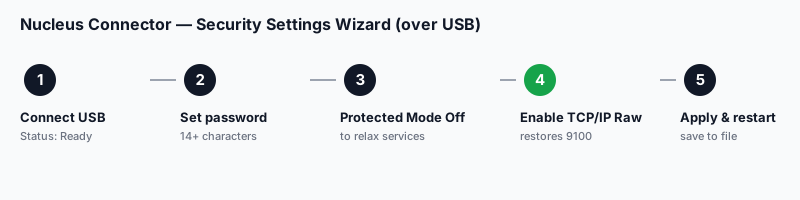
- 1
Install Nucleus Connector
Download Zebra Nucleus Connector from Zebra's official download page (Windows/Android/iOS). Do not use third-party mirrors.
- 2
Connect the printer over USB
Connect the printer to the PC with a USB cable, open Nucleus Connector, and wait until the Printer Dashboard shows Status: Ready and Connection: USB.
- 3
Start the Security Settings Wizard
Open the Security Settings Wizard, read the Protected Mode prompt, then choose Adjust Settings and Begin Security Settings Wizard.
- 4
Create a Protected Mode password
Set a password of at least 14 characters (letters, numbers and special characters allowed). Store it safely — it cannot be recovered.
- 5
Select Protected Mode Off
Choose Protected Mode Off and continue with Next. This is the state in which you can re-enable the services EU RED locked down.
- 6
Enable TCP/IP Raw Ports
On the Additional Security Settings screen, turn on Enable TCP/IP Raw Ports — this restores 9100, 9200 and 9300. Leave FTP, SNMP v1/v2 and LPD off unless you need them.
- 7
Apply the settings
Continue with Next, review the summary, and choose Apply Settings. Optionally tick Save settings to file to reuse the configuration on other printers.
- 8
Restart and return to the network
Let the printer restart if prompted, then reconnect it to your LAN so it is reachable at its network IP again.
Test port 9100 again
Back on the network, re-run the same check from the same host you print from.
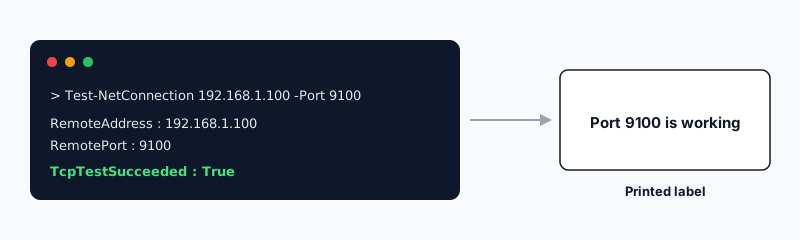
Test-NetConnection 192.168.1.100 -Port 9100You now want TcpTestSucceeded : True. If it is still False, the printer may not have restarted, you may be testing the wrong interface, or a firewall sits between you and the printer.
Send a ZPL test label
Once 9100 is open, send a minimal label to prove the whole path — app, network and print engine. Save the ZPL below as test.zpl, or open it in the editor first.
^XA
^FO50,50^A0N,40,40^FDPort 9100 is working^FS
^XZSend it (macOS / Linux)
cat test.zpl | nc 192.168.1.100 9100Send it (Windows PowerShell, no extra software)
$zpl = "^XA^FO50,50^A0N,40,40^FDPort 9100 is working^FS^XZ"
$c = [System.Net.Sockets.TcpClient]::new('192.168.1.100', 9100)
$s = $c.GetStream()
$b = [System.Text.Encoding]::ASCII.GetBytes($zpl)
$s.Write($b, 0, $b.Length); $s.Close(); $c.Close()
Validate your ZPL before you print
When a label does not come out right, knowing whether the problem is the connection or the ZPL saves wasted media. Preview and validate the code first, then send the verified label to port 9100.
Open the ZPL viewerTroubleshooting
| Symptom | Likely cause | What to check |
|---|---|---|
| Ping works, port 9100 fails | EU RED / Protected Mode disables TCP RAW by default | Run the Nucleus Connector wizard and enable TCP/IP Raw Ports |
| Connection refused on 9100 | The port is closed / not listening | Confirm the wizard applied; restart the printer; check you enabled TCP/IP Raw Ports |
| Connection timeout on 9100 | A firewall, VLAN or router ACL is dropping 9100 | Test from the same subnet; check host firewall and network ACLs |
| Nucleus Connector can't find the printer | The wizard needs USB; network discovery is limited | Connect by USB and wait for Status: Ready / Connection: USB |
| Port opens but nothing prints | Transport is fine; the payload or format is the issue | Send the ZPL test label; validate the ZPL; check media and calibration |
| Driver prints, but raw 9100 fails | The driver uses its own path; raw 9100 is still off | Enable TCP/IP Raw Ports — driver and raw printing are independent |
| Port works, then closes again | Config not applied, firmware reset, or a fleet policy re-locked it | Re-run the wizard and Apply Settings; check any MDM/print-management policy |
Is it safe to enable port 9100?
Enabling 9100 is normal and often necessary, but do it deliberately. Raw TCP on 9100 has no built-in encryption or authentication — that is why EU RED disables it by default.
- Enable it only when your workflow needs raw TCP printing, and only on trusted internal networks.
- Never expose port 9100 directly to the internet — keep it behind your LAN/VLAN and firewall, or route remote sites through a VPN.
- Leave FTP, SNMP v1/v2 and LPD off unless something specifically requires them.
- Keep the Protected Mode password safe — losing it forces a factory reset.
Frequently asked questions
Why can I ping my Zebra printer but not print to it?
Ping only confirms the printer is on the network. Raw printing needs TCP port 9100 listening, and on EU RED units (placed on the market on or after August 1, 2025) it is closed by default. Enable TCP/IP Raw Ports with Nucleus Connector.
Is it safe to enable port 9100?
It is fine on a trusted internal network when your workflow needs raw TCP printing. Port 9100 has no built-in encryption or authentication, so never expose it directly to the internet — keep it behind your firewall or a VPN.
Which Zebra printers are affected by EU RED?
Wireless or Ethernet-radio-capable models placed on the market on or after August 1, 2025: ZQ300/500/600, ZD200/400/500/600, ZT200/400/500/600, ZE500 and ZC300/350. USB-only and Ethernet-only devices are not in scope.
What is Zebra Protected Mode?
Zebra's EU RED security state. Legacy, unauthenticated services (TCP RAW 9100/9200/9300, FTP, SNMP v1/v2, LPD, web pages) are disabled by default and need an authenticated administrator and a 14+ character password to change.
Can I enable port 9100 without Nucleus Connector?
The security configuration can also be applied through Zebra Setup Utilities (one printer at a time) and saved to a file for reuse. Nucleus Connector is the current, guided path Zebra recommends for the EU RED wizard.
Do I have to set a password to enable port 9100?
Yes. The Security Settings Wizard requires a Protected Mode password of at least 14 characters before it applies changes. It cannot be recovered, so store it safely — losing it forces a factory reset.
Sources: Zebra "FAQ's – EU RED Requirements for End Users" and Zebra Nucleus Connector documentation (docs.zebra.com); port roles from Zebra support article 000031643; Protected Mode settings per the PrintSecure Administration Guide (zebra.com/asr).
About the author
Eduard Diaz
Eduard Diaz is an IT technician (development) at S-IE, an official Zebra partner with more than 20 years providing identification and labelling services. He builds and maintains EditorZPL to make working with ZPL and Zebra label printers easier.
s-ie.cat