
Why your Zebra printer prints light or faded
Faint, washed-out labels — or a thin white line running through every print — usually come from darkness set too low, printing too fast, a dirty printhead, mismatched media and ribbon, or a worn printhead. Work through these in order before replacing anything.
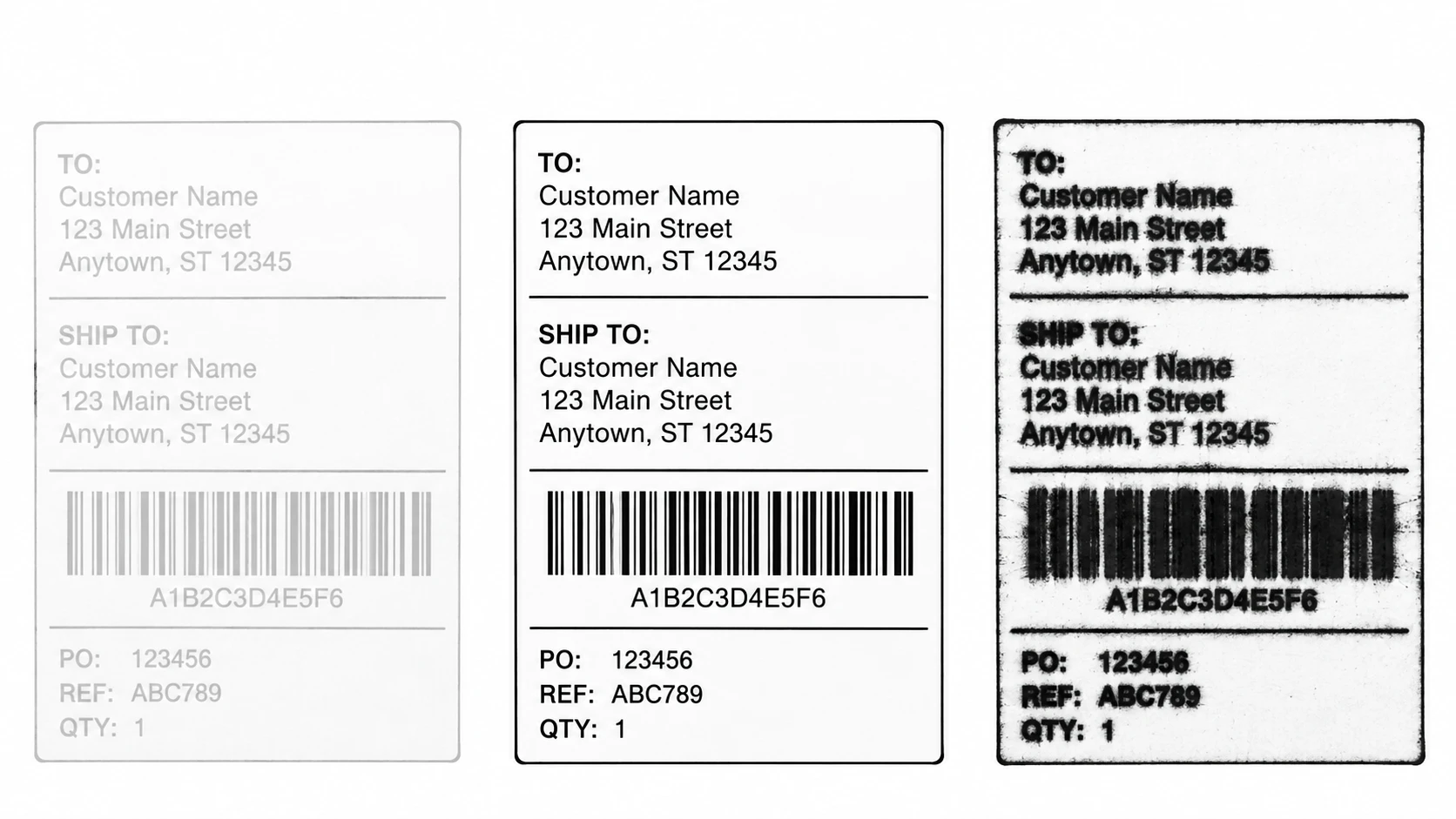
Most common causes
Darkness (burn temperature) is too low
The most common cause. If darkness is set too low for your media and ribbon, text and barcodes come out pale. Raise it a few steps and reprint.
Print speed is too high
At high speed the printhead has less time to transfer, so output looks light. Lowering the speed a step or two often sharpens the print without touching anything else.
The printhead or platen is dirty
Adhesive, dust and ribbon residue on the printhead reduce heat transfer and cause faint or blotchy print. A dirty platen roller has the same effect.
Media and ribbon are mismatched or low quality
A ribbon not matched to the media (for example the wrong wax/resin grade), or cheap media, transfers poorly. Blurry, light print often clears up with the correct ribbon-media combination.
The printhead is worn or has a failed element
A thin white line in the same place on every label is a failed printhead element (burnt-out dot). General fading across the whole label can mean a worn printhead near end of life.
Step-by-step fix
- Raise the darkness gradually — from the printer menu, or with ^SD in ZPL (0–30) — and reprint after each step until text and barcode edges are crisp and solid.
- Lower the print speed a step or two (^PR in ZPL). Slower printing gives cleaner, darker results, especially for small text and barcodes.
- Clean the printhead with a cleaning pen or 99% isopropyl alcohol, and wipe the platen roller. Let it dry, then reprint.
- Check media and ribbon: use quality stock and a ribbon matched to your media and printhead. Confirm you are in the right mode (direct thermal vs thermal transfer) for the media.
- If a white line persists in the same spot after cleaning, a printhead element has failed — replace the printhead. Send the sample ZPL below (it sets speed with ^PR and darkness with ^SD) to compare results.
Darkness and speed test label
This label sets a moderate speed (^PR2) and darkness (^SD20) and prints text and a barcode. Adjust the ^SD and ^PR values and reprint to find the cleanest result for your media.
^XA
^PR2
^SD20
^FO40,40^A0N,40,40^FDDarkness test^FS
^FO40,110^BY3,2,110
^BCN,110,Y,N,N
^FD123456789^FS
^XZOfficial Zebra resources
Frequently asked questions
How do I make my Zebra printer print darker?
Raise the darkness setting (menu, or ^SD 0–30 in ZPL) a few steps, and if it is still light, lower the print speed (^PR). Reprint after each change until the print is crisp.
Why is there a white line through every label?
A thin unprinted line in the same position on every label is a failed printhead element or stubborn debris. Clean the printhead first; if the line remains, the printhead needs replacing.
Why is my print faded after changing media or ribbon?
The new media or ribbon may need a different darkness, or the ribbon may not match the media. Re-tune the darkness and confirm the ribbon grade suits the media.
About the author
Eduard Diaz
Eduard Diaz is an IT technician (development) at S-IE, an official Zebra partner with more than 20 years providing identification and labelling services. He builds and maintains EditorZPL to make working with ZPL and Zebra label printers easier.
s-ie.cat