
Why your Zebra printer is not printing
A Zebra printer that powers on but produces nothing — blank labels, no feed, or jobs that seem to send but never print — usually has one of a handful of causes: a paused or error state, wrong media/ribbon setup, a printer that needs calibration, a broken data path, or darkness set too low. Work through them in order.
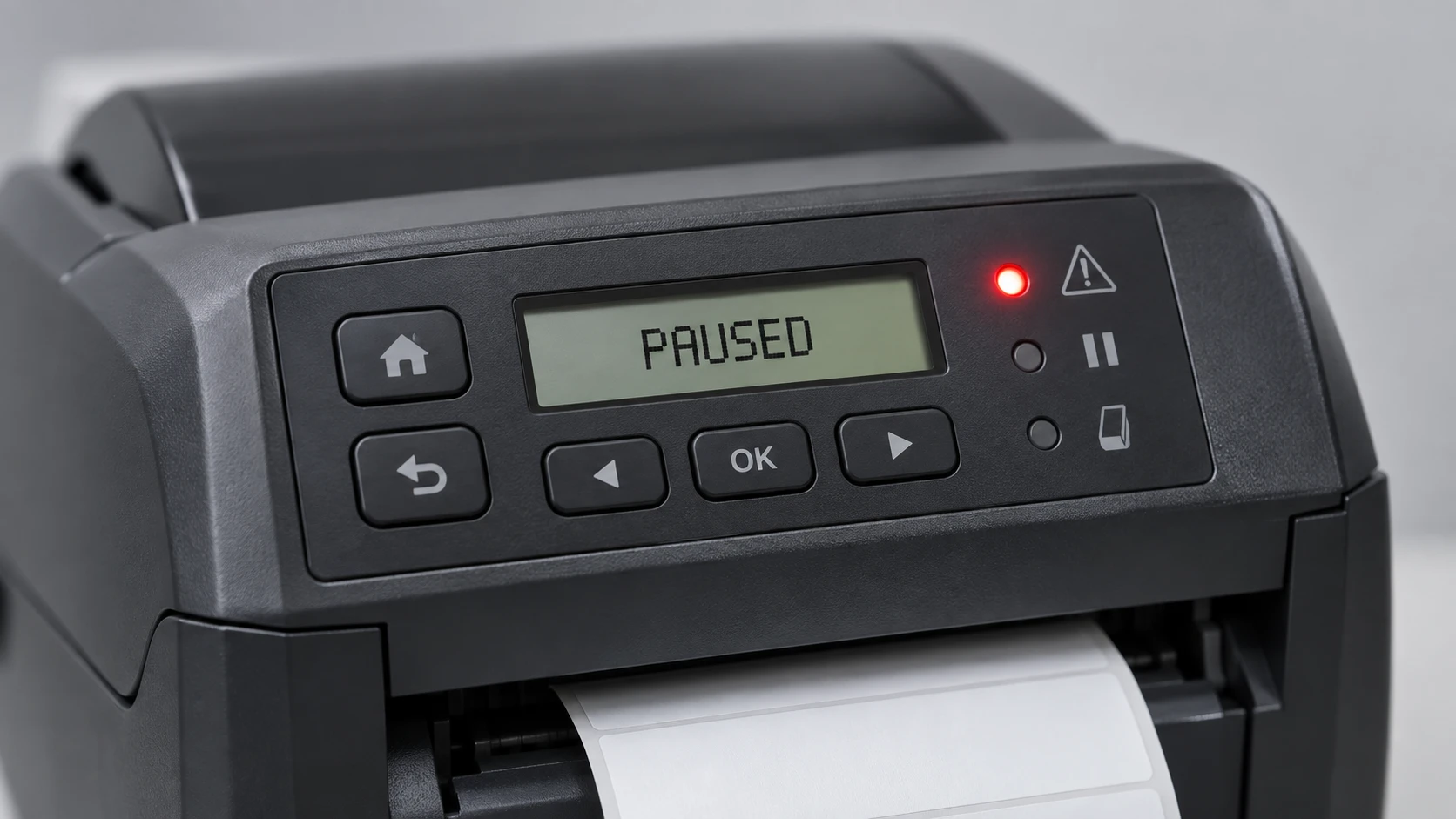
Most common causes
The printer is paused or in an error state
If the LCD or status light shows Pause, Error, Head Open, Media Out or Ribbon Out, the printer holds every job. Nothing prints until the condition is cleared and the printer is Ready.
Wrong media type, or missing ribbon
Blank labels are almost always a media mismatch. Thermal transfer needs a ribbon; direct thermal must not have one and needs heat-sensitive media. If the media type setting does not match the loaded media, the label comes out blank.
The printer needs calibration
If the sensor cannot find the gap, notch or black mark, the printer feeds one or more blank labels, skips labels, or stops. New media rolls and media changes usually need a fresh calibration.
The data never reaches the printer
A paused print queue, offline driver, wrong port, or (on the network) a blocked raw port means the job never arrives. The printer is fine; the data path is broken.
Darkness too low or a dirty printhead
If darkness (burn temperature) is too low, or the printhead is dirty or worn, output can be faint to invisible and look like nothing printed at all.
Step-by-step fix
- Read the LCD and status light first. Clear any Pause, Head Open, Media Out or Ribbon Out condition, close the printhead firmly, and confirm the printer shows Ready before anything else.
- Check media and ribbon. For thermal transfer, load a ribbon; for direct thermal, remove the ribbon and use heat-sensitive media. Make sure the printer's media type setting matches — a mismatch is the usual reason labels come out blank.
- Calibrate the media/gap sensor (from the printer menu, or the feed-button calibration for your model) so the printer detects each label. Do this after every media change.
- Isolate printer vs data path. Print a configuration or test label from the printer itself: if that works, the printer is fine and the problem is the connection — check the print queue, driver, port, and for network raw printing that TCP port 9100 is open (see the guide on port 9100 blocked by EU RED).
- If labels feed but look faint or empty, raise the darkness a few steps, clean the printhead with a cleaning pen or alcohol, and run a print-quality test. Send the sample ZPL below to confirm end to end.
Minimal print test label
Once the printer is Ready and calibrated, send this small label to confirm it prints text and a barcode correctly.
^XA
^FO40,40^A0N,40,40^FDPrinter test OK^FS
^FO40,110^BY3,2,110
^BCN,110,Y,N,N
^FD123456789^FS
^XZOfficial Zebra resources
Frequently asked questions
Why is my Zebra printer feeding blank labels?
Almost always a media mismatch or calibration issue: a thermal transfer printer with no ribbon, a direct thermal printer with the wrong media, or an uncalibrated gap/black-mark sensor. Set the correct media type and calibrate.
My Zebra printer is paused and won't print — what do I do?
Check the LCD or status light for Pause, Head Open, Media Out or Ribbon Out. Clear the condition, close the printhead, and make sure the display shows Ready. Held jobs then release automatically.
The printer works over USB but not over the network. Why?
The printer is fine; the network data path is blocked. Confirm the print queue and IP, and for raw TCP printing make sure port 9100 is open — on recent EU RED printers it is disabled by default. See the dedicated port 9100 guide.
About the author
Eduard Diaz
Eduard Diaz is an IT technician (development) at S-IE, an official Zebra partner with more than 20 years providing identification and labelling services. He builds and maintains EditorZPL to make working with ZPL and Zebra label printers easier.
s-ie.cat