
Why your Zebra printer prints garbled text
If your Zebra prints the raw ZPL commands as text (^XA, ^FO… on the label), spits out random characters, or shows the wrong accented letters, the label data itself is usually fine — the printer is in the wrong mode, set to the wrong language, driven by the wrong driver, or using the wrong code page.
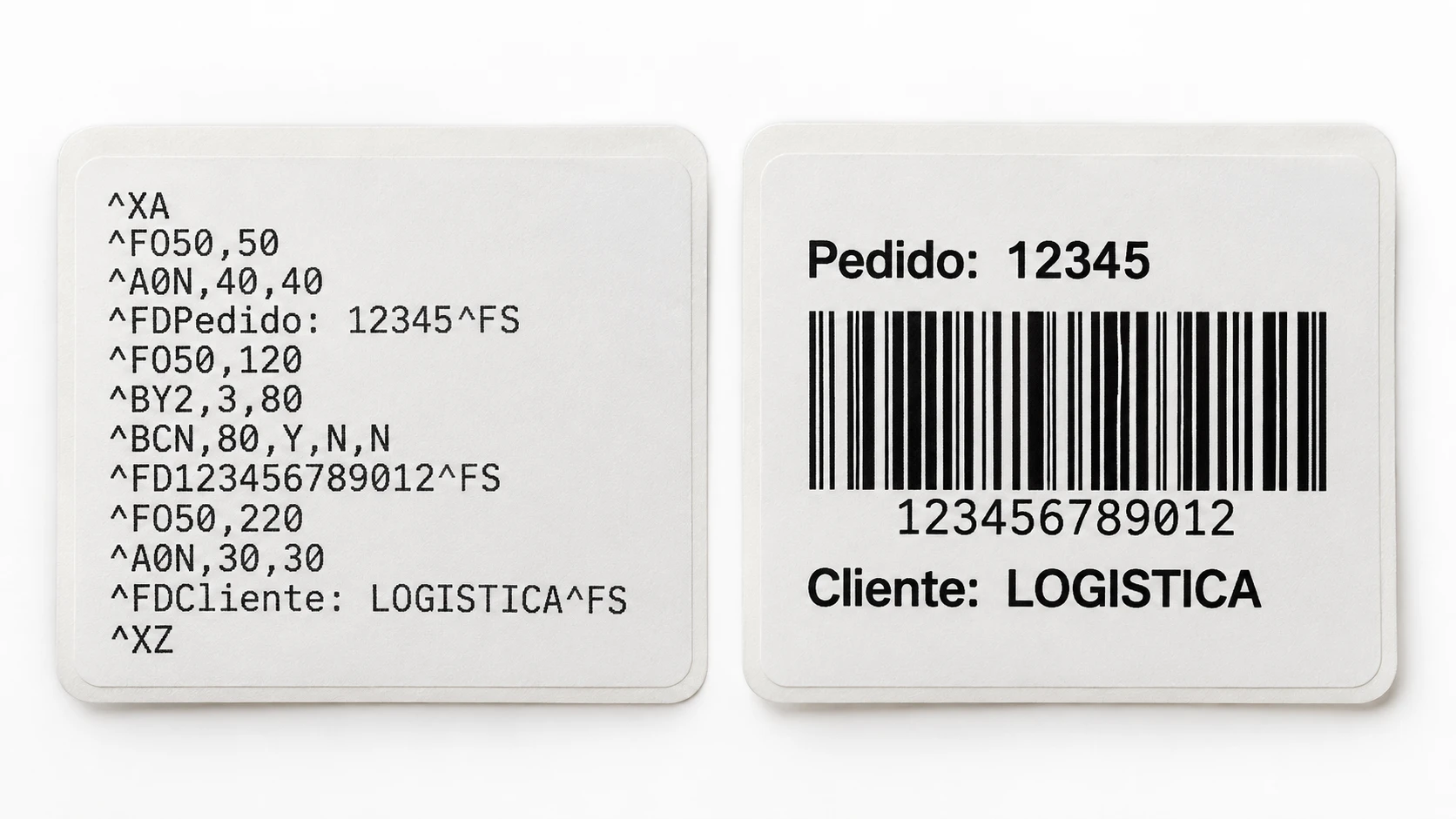
Most common causes
The printer is in diagnostic (dump) mode
In communications-diagnostics mode the printer prints every command it receives as literal text instead of executing it, so you see ^XA, ^FO and your field data printed out. This mode must be turned off.
The printer language is set wrong
If the printer is set to EPL or line-print mode and receives ZPL (or vice versa), it cannot interpret the commands and prints them as text or as garbage.
The wrong driver is sending the data
A generic text driver, or a graphics driver that re-renders the job, can send data the printer cannot parse. ZPL must reach the printer as raw ZPL — via the ZDesigner ZPL driver or a raw port.
Code page / character-set mismatch
When accented or non-ASCII characters come out wrong, the printer's international character set does not match the data encoding. ZPL selects it with ^CI.
Wrong data or protocol reaches the printer
Sending a PDF, image or PostScript stream, or partial/corrupted data, to a ZPL printer produces random characters. The printer only understands its own command language.
Step-by-step fix
- Turn off diagnostic/dump mode. Send ~JE, or cancel Diagnostic mode from the front panel (or power-cycle the printer). It should then execute commands instead of printing them as text.
- Set the printer language to ZPL. Use the front-panel Language setting, or the SGD device.languages, so the printer interprets ZPL rather than EPL or line print.
- Use the correct driver: install the ZDesigner ZPL driver for your model, or send raw ZPL straight to the printer (for example to TCP port 9100). Avoid generic text or graphics drivers that reformat the job.
- For wrong accented characters, set the code page with ^CI to match your data — ^CI28 for UTF-8 is the usual choice — and make sure the ZPL is saved in that same encoding.
- Confirm you are sending ZPL, not a PDF, image or EPL, and test with the sample ZPL below (it sets UTF-8 with ^CI28). If it prints cleanly, the earlier job was the problem, not the printer.
UTF-8 text test label
This label sets the UTF-8 code page (^CI28) and prints accented characters. If they render correctly here and on the printer, your encoding and language settings are right.
^XA
^CI28
^FO40,40^A0N,40,40^FDZPL OK áéíóú çñü^FS
^XZFrequently asked questions
Why is my Zebra printer printing the ZPL code as text?
The printer is in communications-diagnostics (dump) mode, which prints commands literally instead of executing them, or it is set to the wrong language. Send ~JE (or disable Diagnostic mode) and set the printer language to ZPL.
Why does my Zebra printer print random characters?
Usually a driver or protocol mismatch: a generic/text driver, or a non-ZPL stream (PDF, image, EPL) reaching a ZPL printer. Use the ZDesigner ZPL driver or send raw ZPL, and confirm the printer language is ZPL.
Why are accented or special characters wrong?
The printer's code page does not match your data encoding. Add ^CI to your ZPL — ^CI28 selects UTF-8 — and save the ZPL in the same encoding.
About the author
Eduard Diaz
Eduard Diaz is an IT technician (development) at S-IE, an official Zebra partner with more than 20 years providing identification and labelling services. He builds and maintains EditorZPL to make working with ZPL and Zebra label printers easier.
s-ie.cat